
 Deutsch
 English
 Türkçe
On this page you get an overview of the suppliers you have created in Salevali.
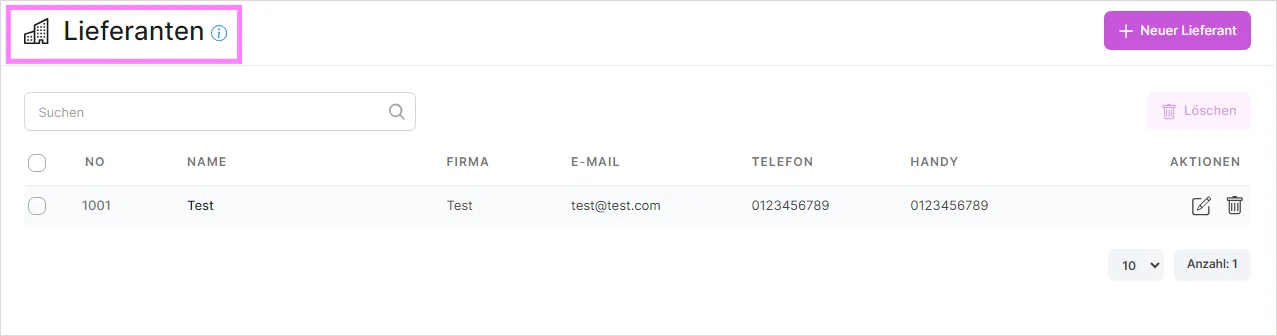
You can narrow down the supplier list with the filters above the table. Filter by "With products" or "Without products" to find suppliers that already have products assigned, by "With tax / VAT ID" or "Without tax / VAT ID" to spot suppliers whose tax details are still missing, and by Country to focus on suppliers from a specific country.
To work on several suppliers at once, select their checkboxes in the list and use the bulk delete option to remove all selected suppliers in a single step, rather than deleting them one by one.
In the actions you can delete or edit suppliers.

 Using the New Supplier button, you can create suppliers
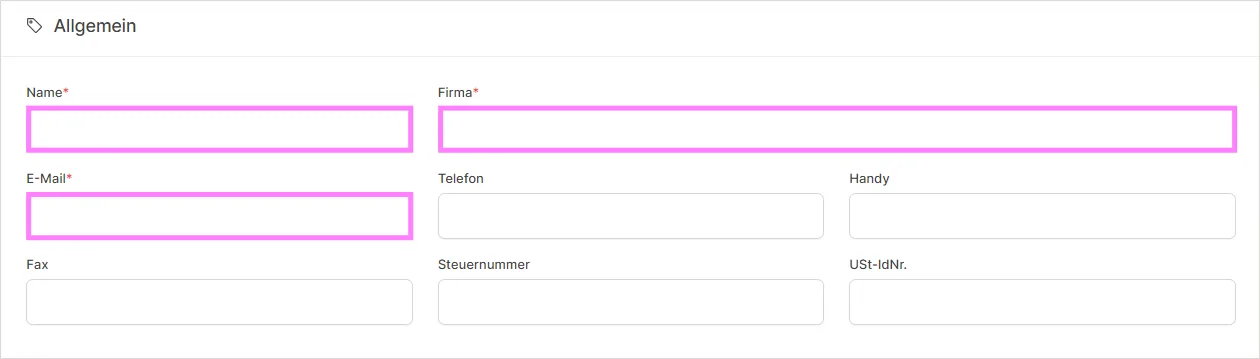
In the General section, you can edit the supplier information.In the General section, you can edit the supplier information.
Choose the supplier type that matches your supplier: Standard, Private, Company, or Sole proprietorship. The supplier type determines which fields, such as company name or tax details, are relevant for that supplier.
In the General section you can also enter the supplier's tax number and VAT ID, and add free-text Notes for any additional information you want to keep on record for this supplier.
In the Contacts section, you can manage the contact persons for this supplier. Add a contact person with their first name, last name, email, phone, and position, and enable "Show on documents" to display that contact on orders, offers, invoices, and proforma invoices.
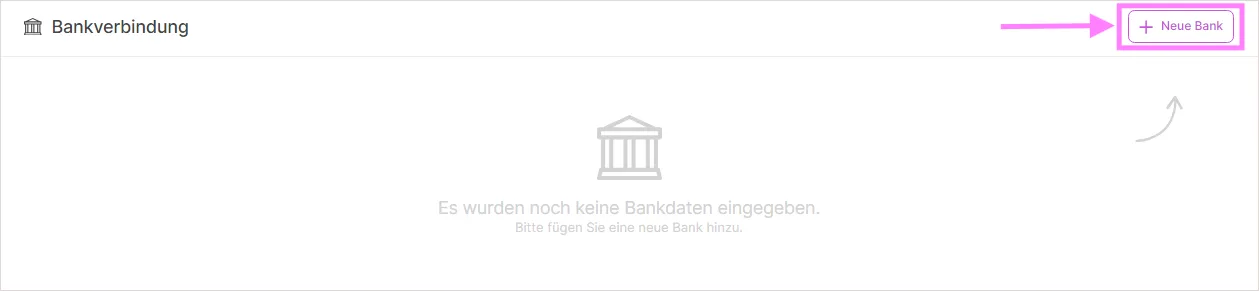
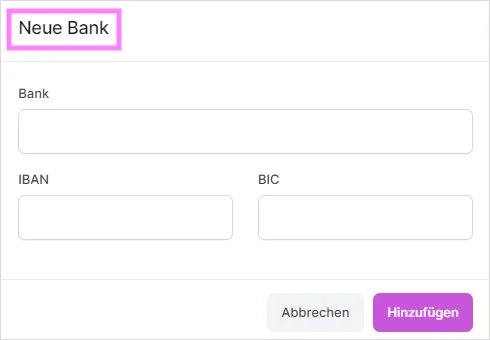
In the Bank Details section, you can view the bank details and add new bank data by clicking the 'New Bank' button on the right.You can edit or delete bank details by using the "Edit" and "Delete" buttons in the "Actions" section.
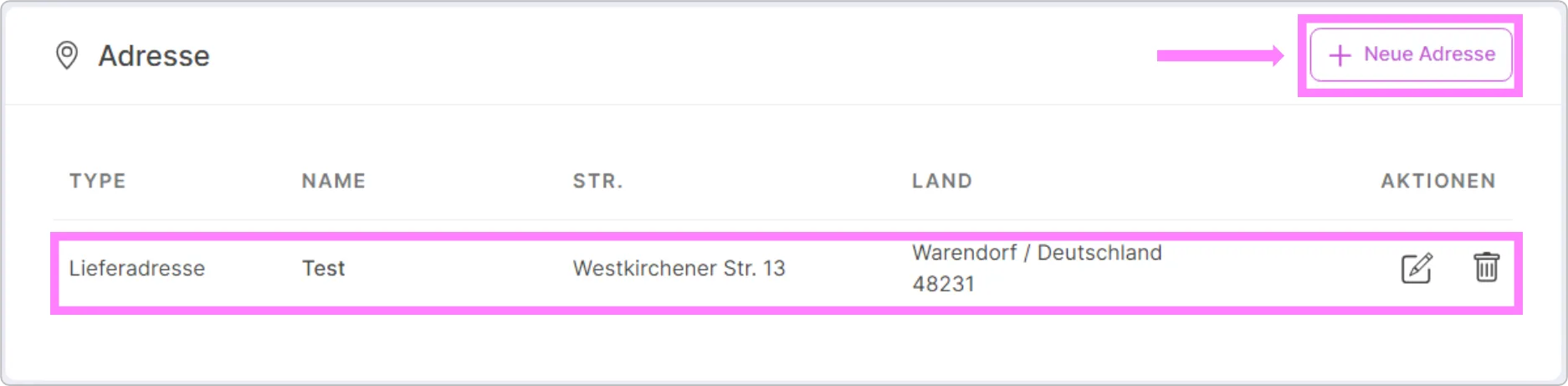
In the Address section, you can view the delivery address and billing address, and create a new delivery or billing address by clicking the 'New Address' button on the right.
At the bottom of the supplier edit page, the Supplier's products section shows an embedded, searchable table of all products assigned to this supplier, so you can quickly check or look up which products come from this supplier without leaving the page.
The supplier edit page also includes a Change history section, where you can see a chronological record of the changes made to the supplier, such as when it was created and updated.
Video Tutorials
SaleVali Suppliers
Was this article helpful?
Thanks for your feedback!