
 Deutsch
 English
 Türkçe
On this page you can create invoices by clicking the 'New Invoice' button and edit your existing invoices.
- Existing or newly created invoices are listed in the table below.
- In this area you can see the invoice ID, invoice date, customer details, order number, sales channel, payment method, payment status, and payment amounts.
- You can also sort the column headers from high to low or from A to Z.
- Existing or newly created invoices are listed in the table below.
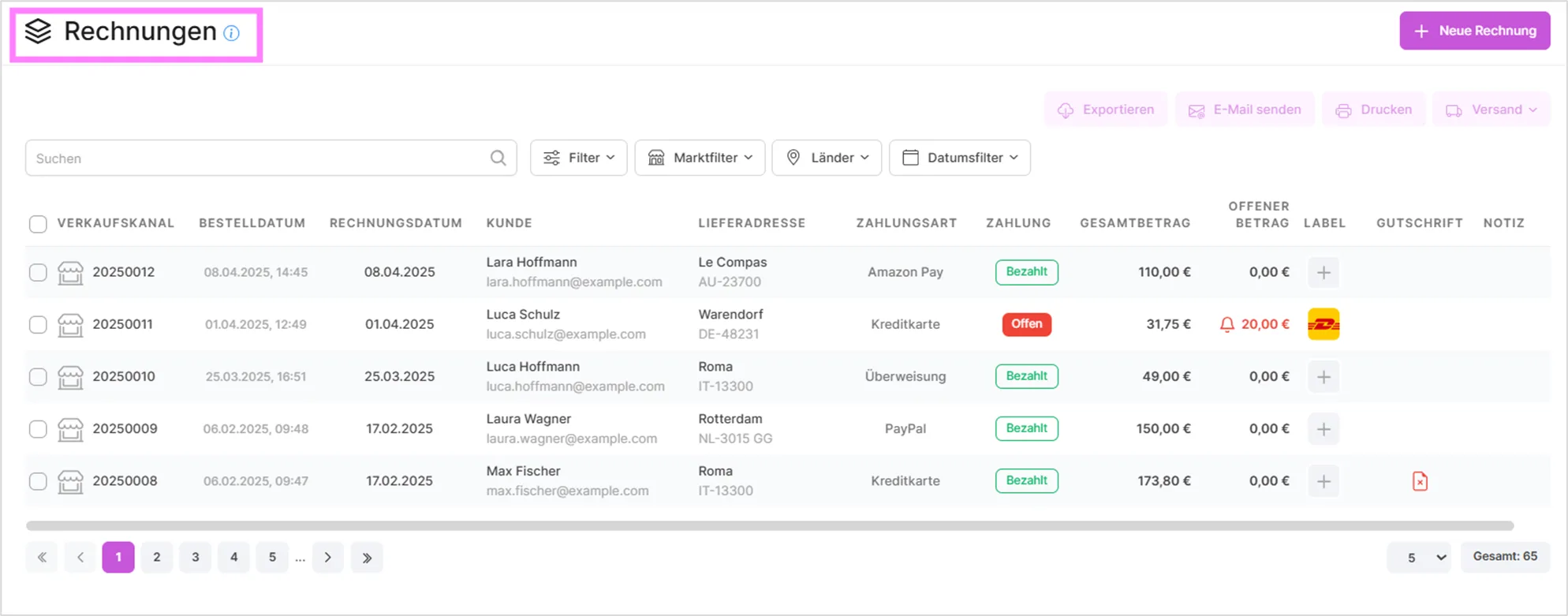
By selecting one or more customers from the list, you can send the invoice to the customer using the 'Send email' function.

With the 'Print' function you can print the selected invoice.
With the  function you can automatically create a shipping label by selecting the desired carrier.
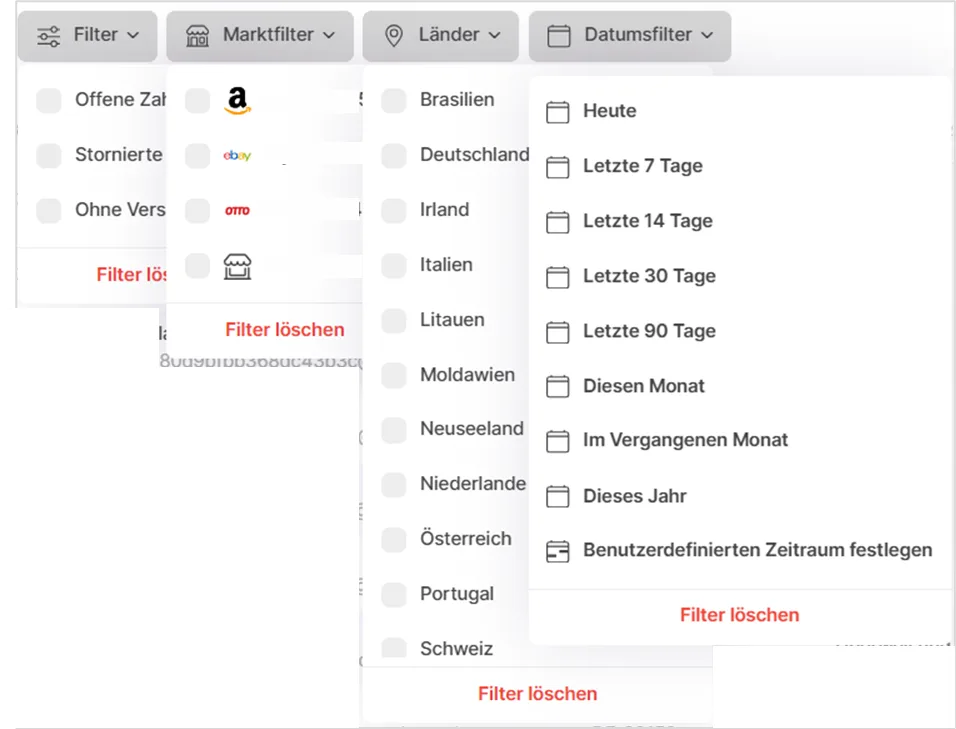
You can search by ID and name using the search bar below  . You can also filter as needed in the filter area next to the search bar.
If you like, you can also view your invoices by category using the "Filter" function.
When you hover your mouse over the relevant invoice, you'll see a three-dot icon on the right. Clicking it opens a dropdown menu where you can perform operations on that invoice.
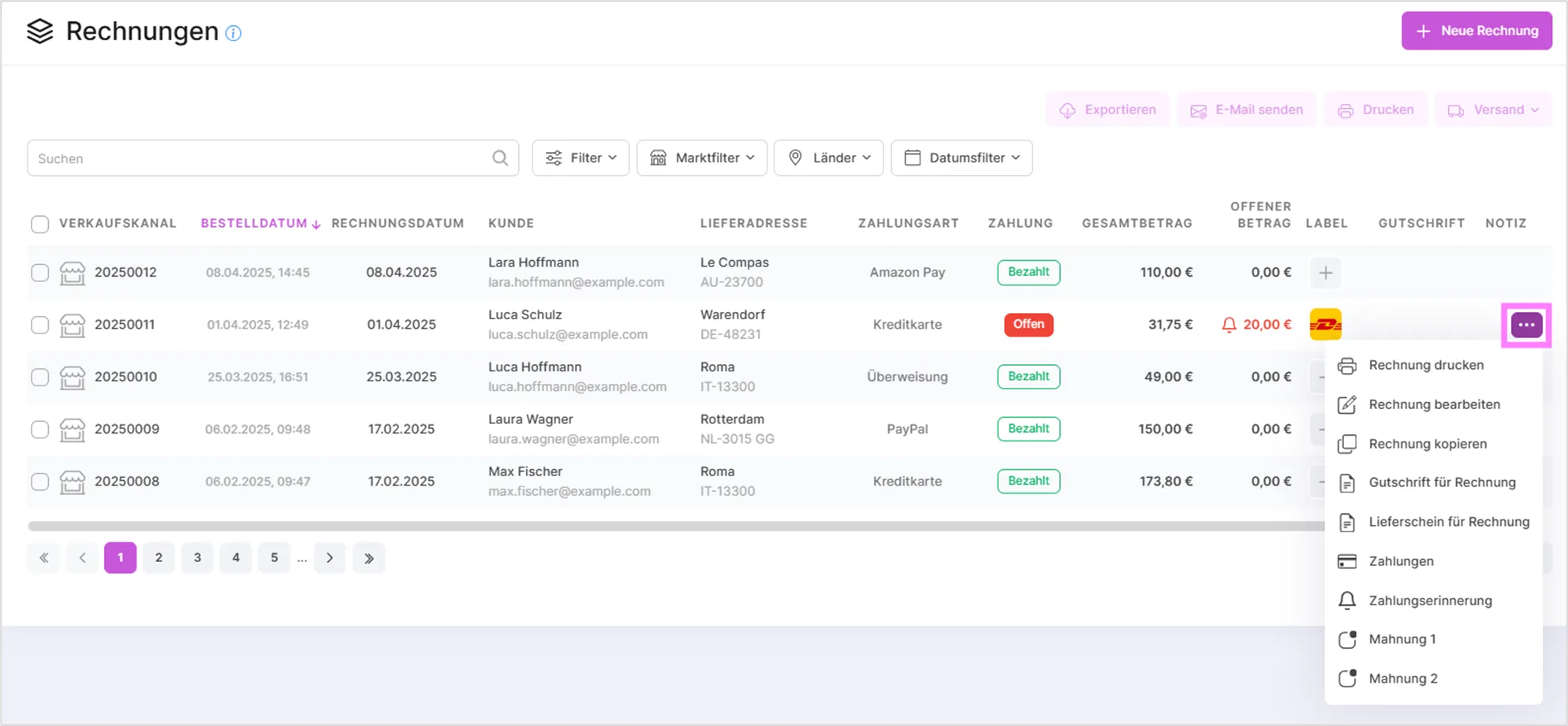
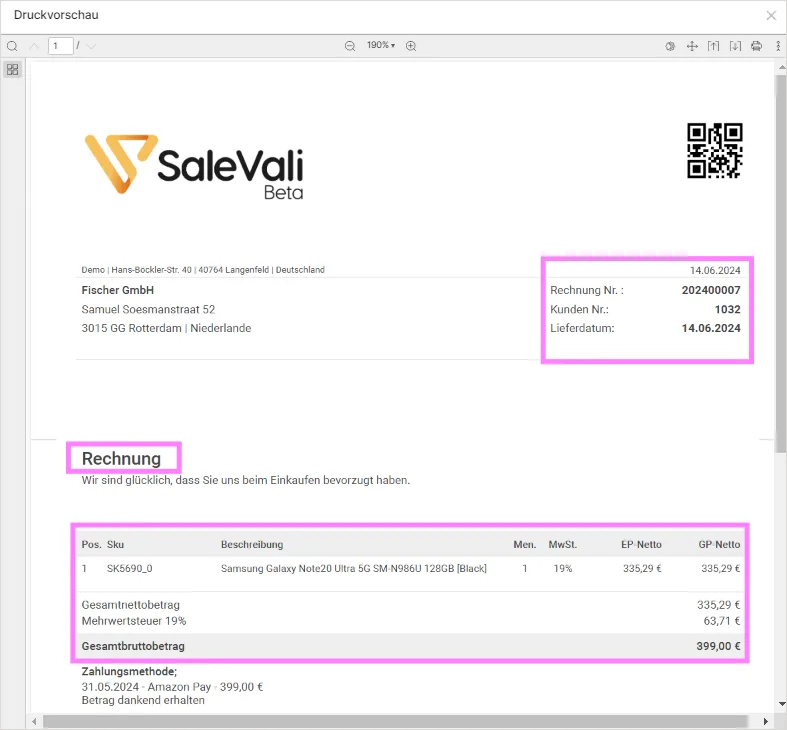
With SaleVali you can easily carry out the actions shown in the images below.
With the "New Invoice" function you can create new invoices for your customers. The steps in this area are the same as those in the section for creating new orders.
Summary Bar
Above the invoice list, a summary bar gives you a quick overview of your billing situation at a glance:
- Open invoices: the number of invoices that are still open or only partially paid.
- Open amount: the total amount still owed on those open and partially paid invoices.
- Reminders sent: how many invoices already have at least one payment reminder sent.
- Revenue this month and VAT this month: your invoiced revenue and the corresponding VAT for the current month.
- Credit notes created: how many credit notes have been issued.
Payment Status Filter
Next to the general filters described above, you can narrow the invoice list down by payment status. The Status filter group lets you show only invoices that are Open, Partially paid, Paid, or Overpaid, so you can jump straight to the invoices that need your attention.
Payments
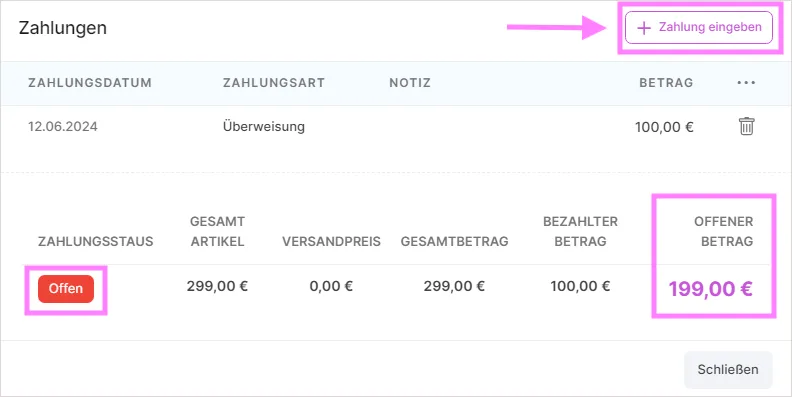
Clicking "Payments" in the dropdown menu opens the payments dialog for an invoice. Here you get the full payment history for that invoice, together with a running summary of the amount already paid and the amount still open.
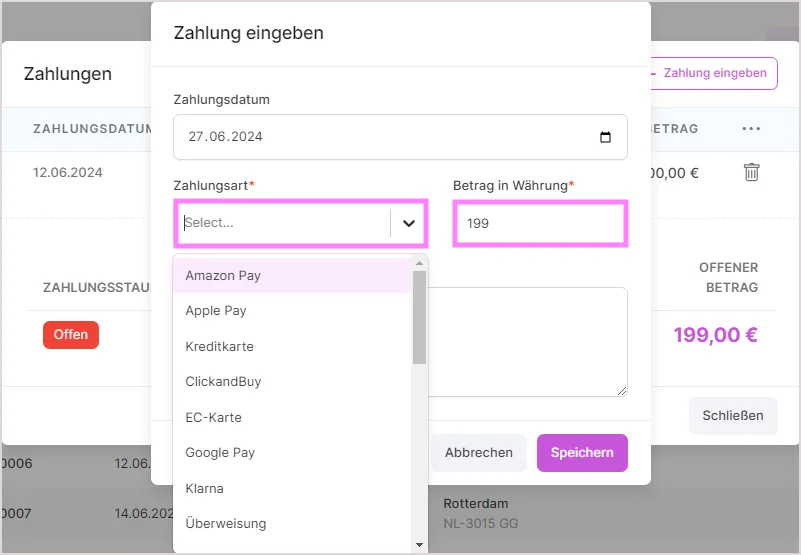
To record a new payment, click "Enter payment" and fill in:
- Date: the date the payment was received.
- Payment method: selected from a list of about 23 methods, including:
- Amazon Pay
- Apple Pay
- Credit card
- ClickandBuy
- EC-card
- Google Pay
- Klarna
- Transfer
- Purchase on bill
- Direct debit
- Moneybookers
- Financial/hire purchase
- Cash payment
- Prepayment
- PayPal
- Paysafecard
- Cash on delivery
- Otto
- Ebay
- Kaufland
- ManoMano
- Sepa
- Other
- Amount: the amount received.
- Note: an optional note for your own reference.
If a payment would push the invoice's total paid amount above what is actually owed, SaleVali shows an overpayment warning before you confirm the entry.
Payment Reminders
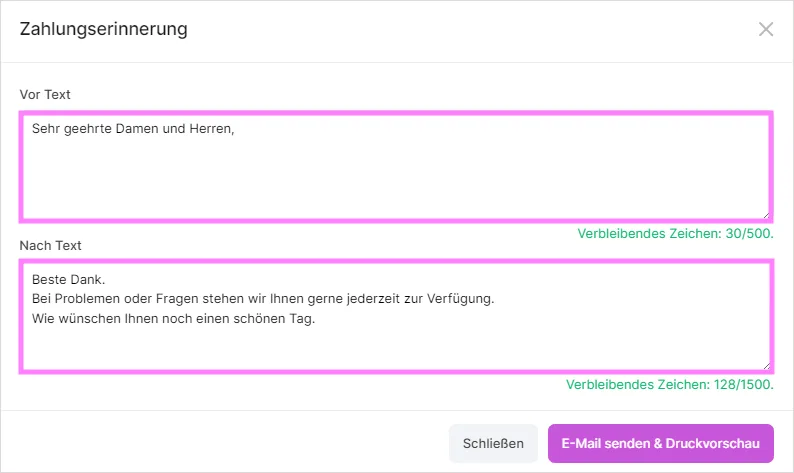
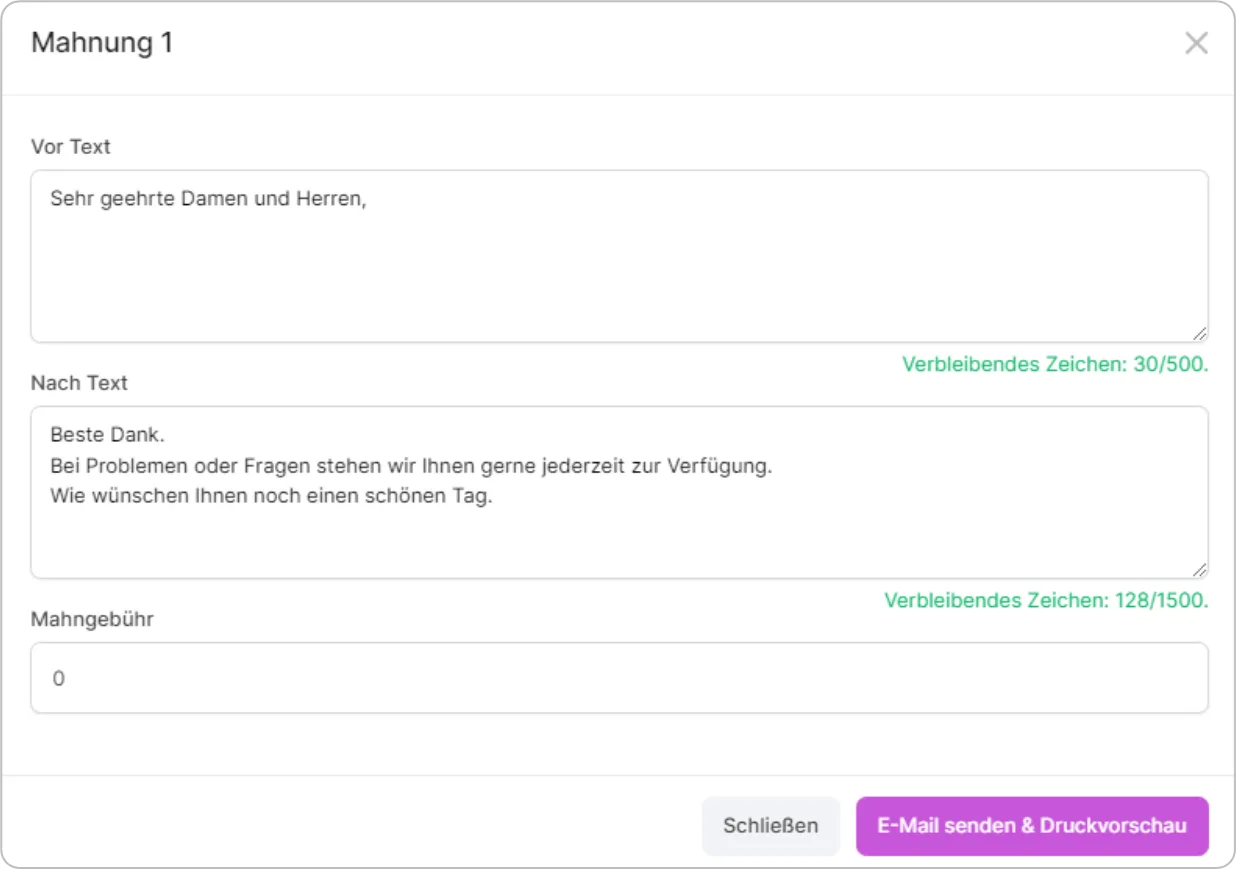
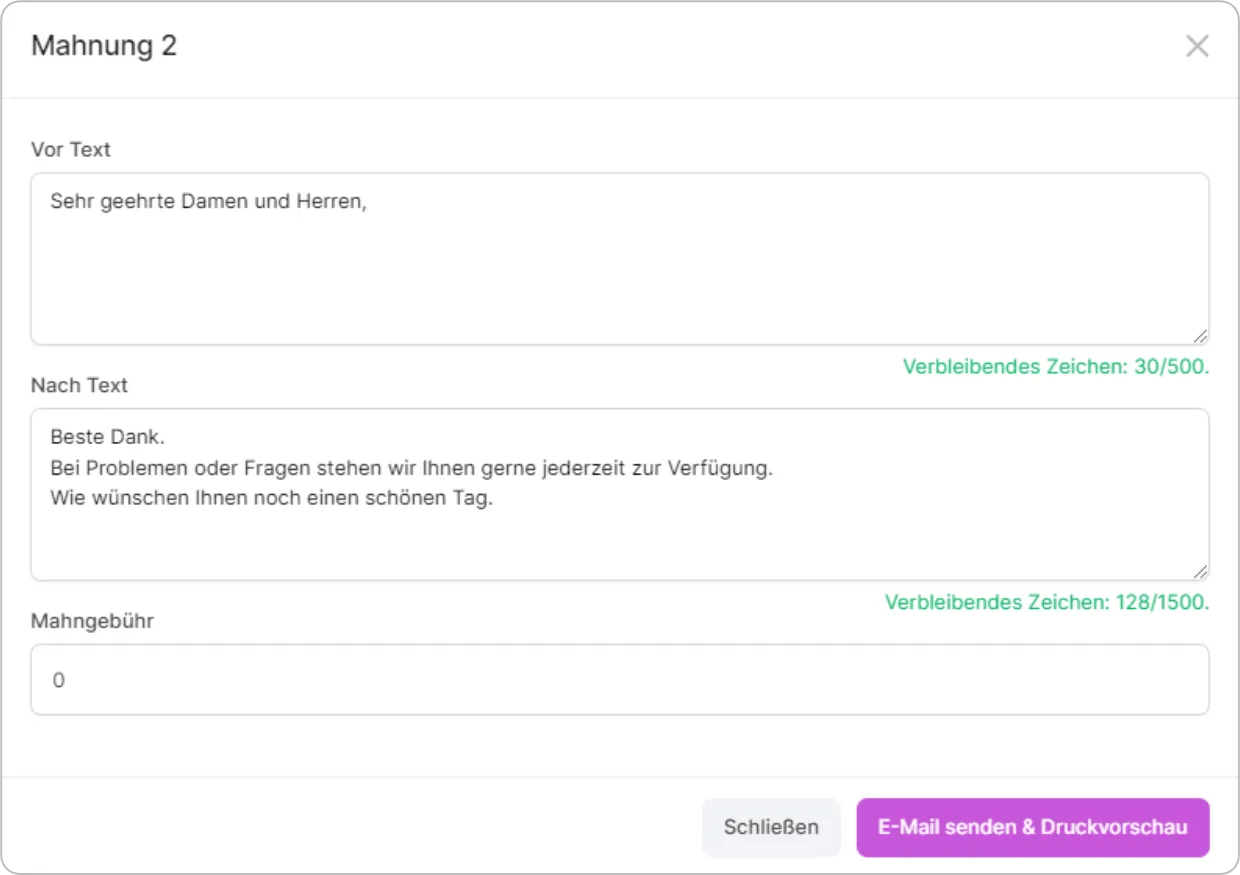
SaleVali supports a three-step reminder process: Payment reminder → Reminder 1 → Reminder 2. Each level has its own editable before-text and after-text for the email, plus a field for the reminder fee, so you can adjust the wording and the fee to match your own process. The levels build on each other: for example, you must send the payment reminder before Reminder 1 becomes available, and Reminder 1 before Reminder 2.
If you need to send reminders for several invoices at once, use the bulk-reminder dialog, which applies the same reminder step to all the invoices you've selected in one go.
Lexware Voucher View
If your invoices are synced to Lexware, the dropdown menu offers a "View Lexware Voucher" option. It opens a read-only detail view of the accounting voucher as it exists in Lexware, including the voucher type, voucher number and date, posting category, line items, and totals. This is useful for checking that an invoice was transferred correctly without having to switch over to Lexware itself.
Duplicate-Invoice Protection
If an invoice has already been generated for an order, SaleVali warns you before creating a second one, so you don't end up with duplicate invoices for the same transaction.
Creating a Credit Note
From an invoice's dropdown menu, you can select "Create credit note" to generate a credit note directly from that invoice, without having to re-enter the customer or item details. For more on managing credit notes afterwards, see Credit Notes.
Tax Category
SaleVali automatically detects each invoice's tax category based on the customer's country and VAT ID, choosing from options such as Inland, Inland (B2B), Intra-EU, Intra-EU (OSS), Intra-EU (B2B), Abroad, or Differential taxation. This determines how VAT is calculated and displayed on the invoice, so it's worth double-checking it whenever a customer's address or VAT status changes.
Video Tutorials
Creating an Invoice Manually
Viewing Invoice Details
Copying an Invoice
Creating Proforma Invoices
Creating Invoices from Quotes
Was this article helpful?
Thanks for your feedback!