
 Deutsch
 English
 Türkçe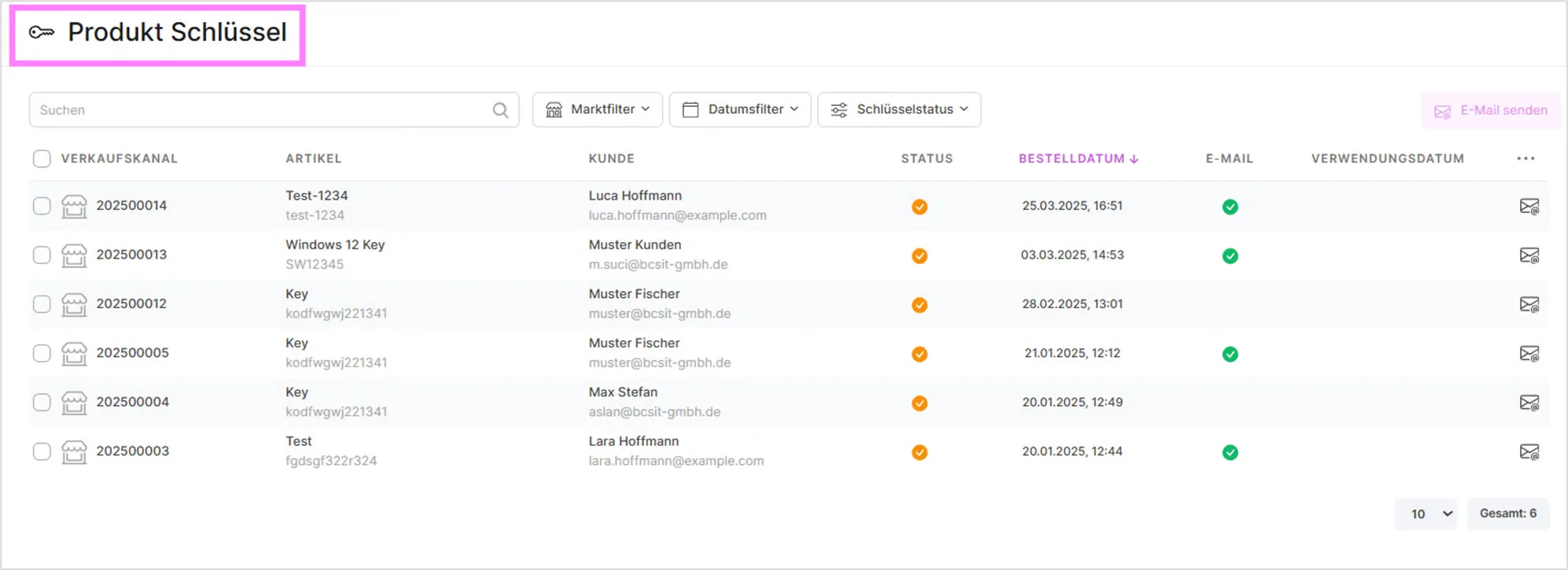
- Search: Allows you to search for key details, customer names, or other information.
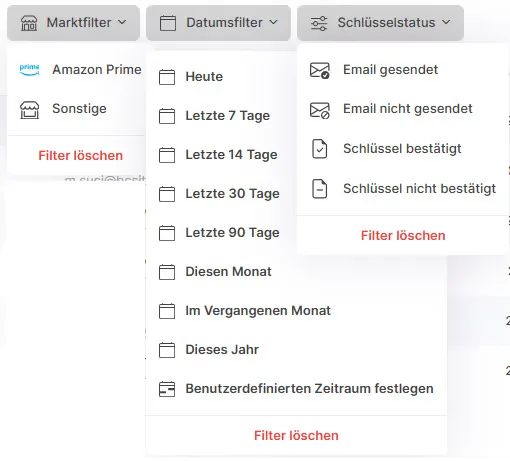
- Marketplace filter, date filter, key status: These dropdown menus provide filter options to narrow down the list of product keys based on sales channel and order date. The key status filter offers four values: Email sent, Email not sent, Key confirmed, and Key not confirmed.
- Send Email: Allows you to send emails, presumably containing the product keys or related information, to the selected customers.
Each row also has a status icon: a green checkmark means the key has already been sent by email, while an orange icon marks a key that is only reserved and not yet sent. Two additional columns show the corresponding dates: Email sent on and Used on, so you can see at a glance when a key was emailed to the customer and, once redeemed, when it was used.
Clicking a customer's name or email address opens a customer detail dialog with the customer number, customer type, name, eBay username (for orders placed via eBay), email address, phone number, company name, and their billing and delivery addresses.
Bulk actions: Use the checkboxes on the left of each row to select multiple keys at once. Once at least one row is selected, the Send keys by email button becomes active, letting you send the email for all selected keys in one action instead of sending them individually.
Each row's action column also offers a Copy key button, which copies the key(s) for that row to your clipboard so you can paste them elsewhere without opening the email.
Was this article helpful?
Thanks for your feedback!