
 Deutsch
 English
 Türkçe
On this page, you can import your existing customers and products that were created in CSV format.
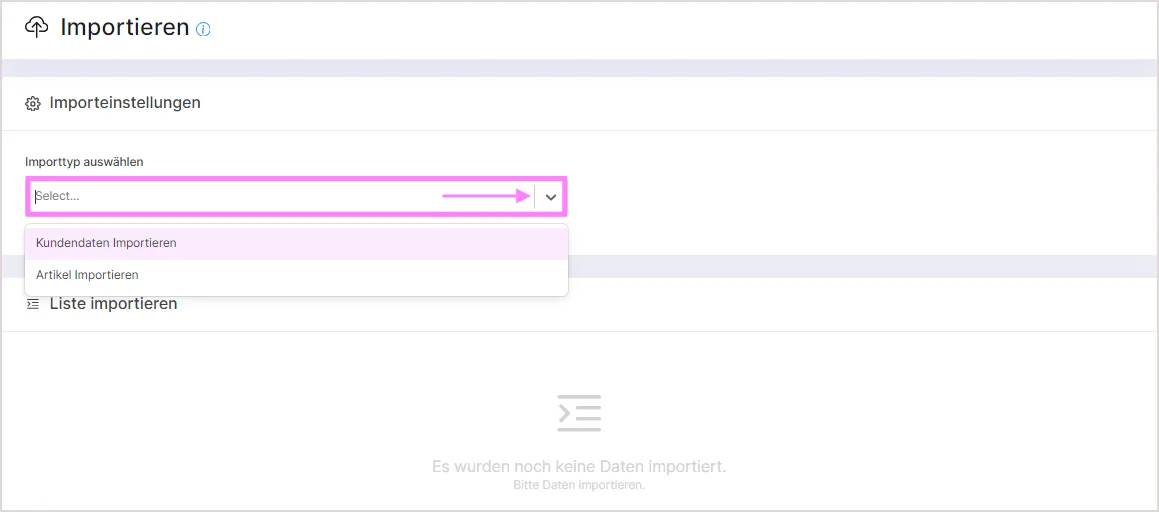
Importing Customer Data
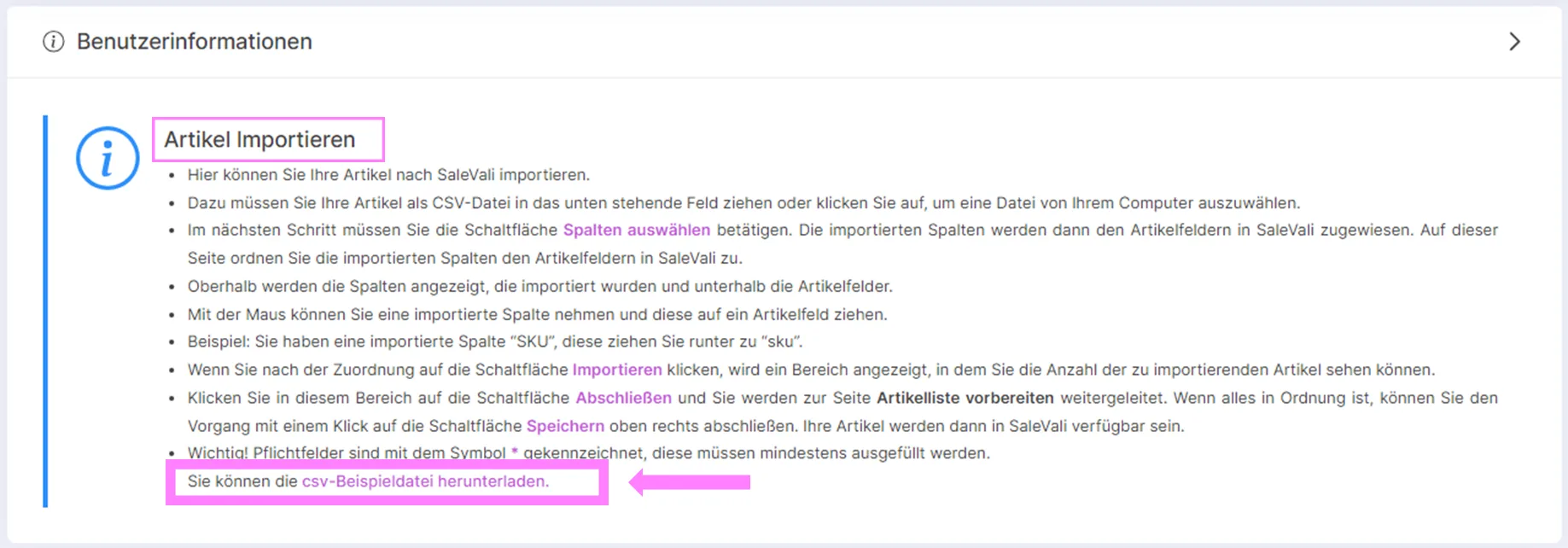
When you select the import type in the "Select Import Type" field within "Import Settings," an information panel appears describing in detail how to import the data type you selected.
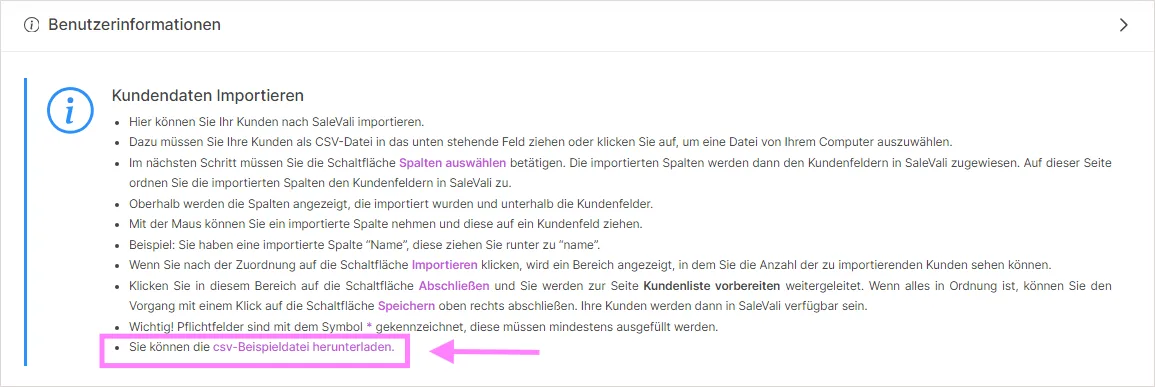
You can complete the process by carefully following the instructions in this popup information box. If you like, you can download the sample CSV data from the last item in the info box, and the exported CSV file will then be shown as an entry in the export list section.
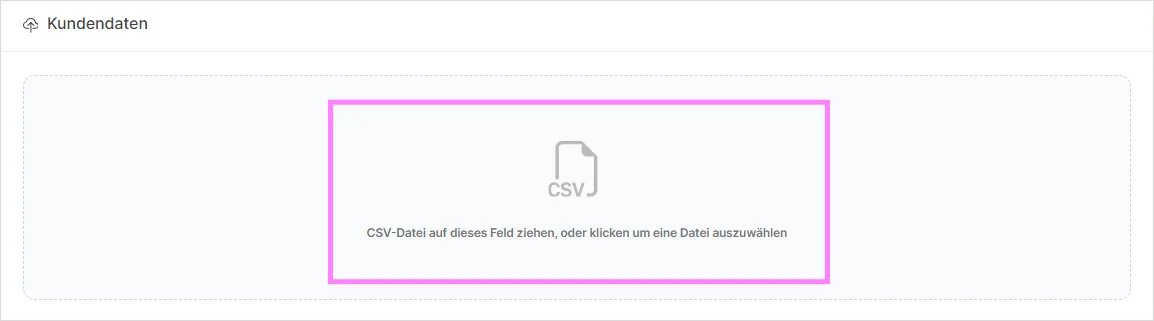
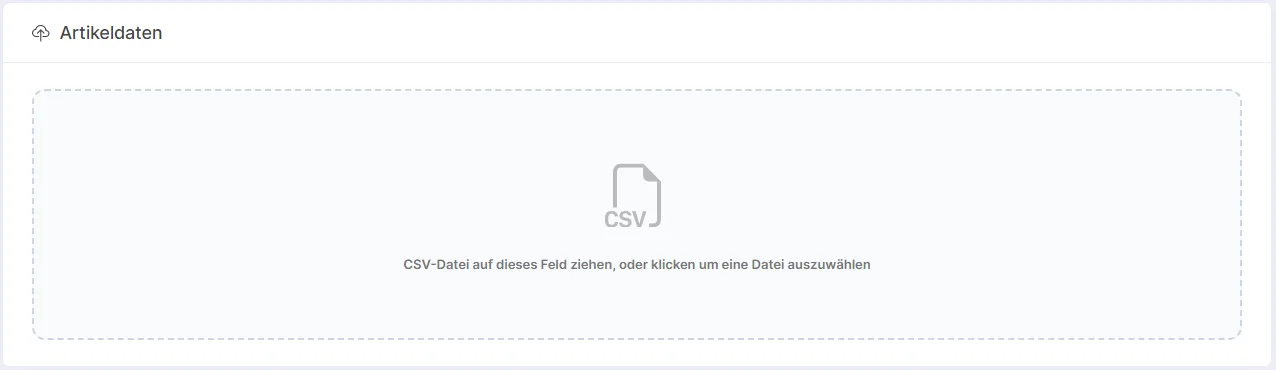
Once you have filled in the sample CSV file, you need to upload it in the field below.
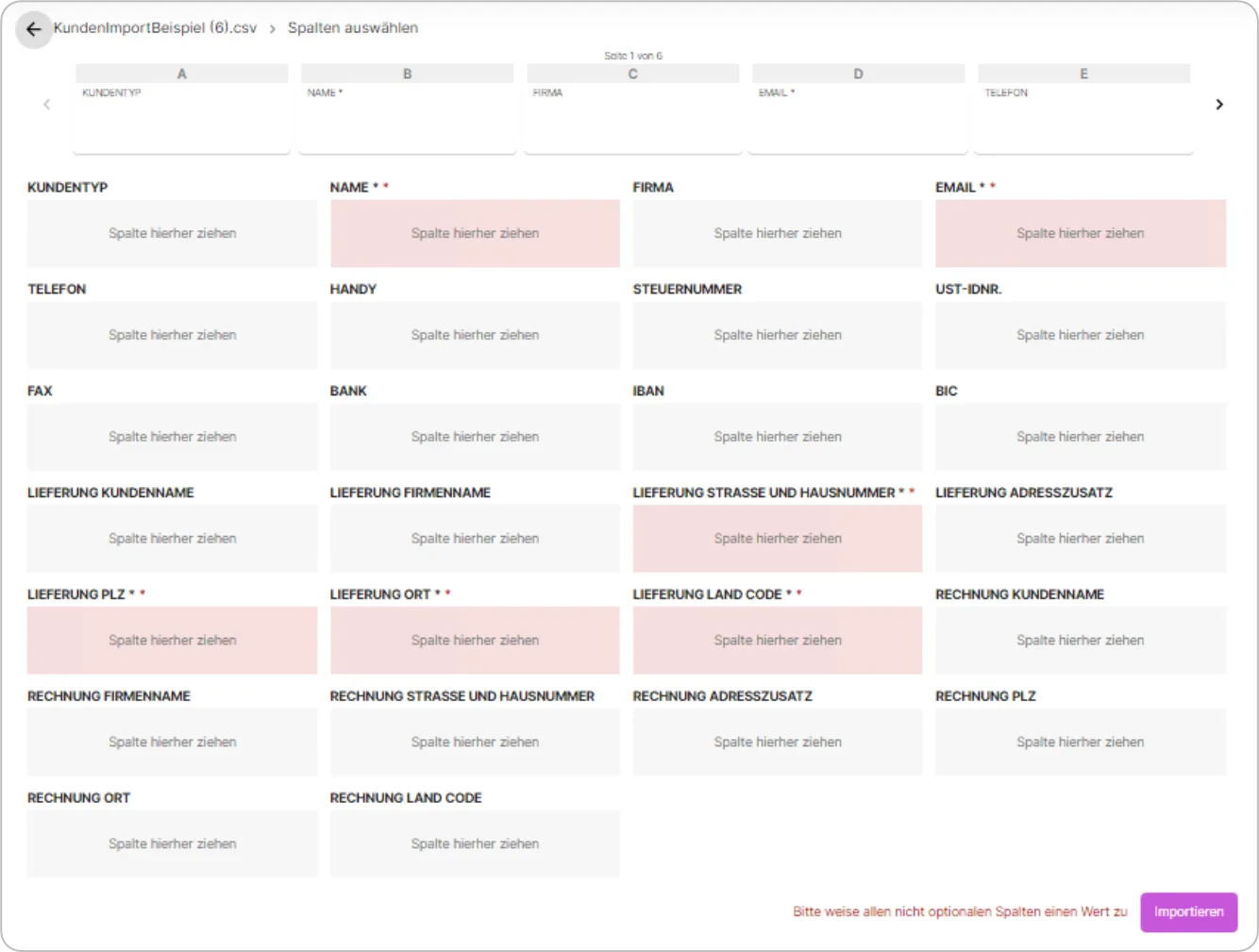
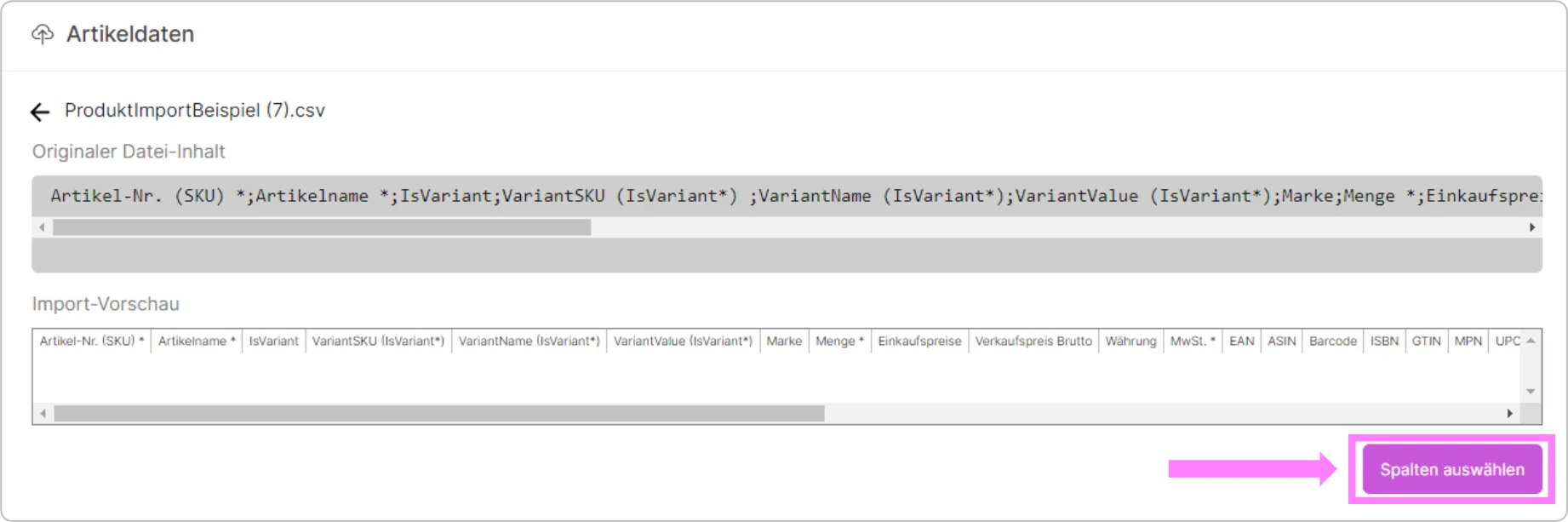
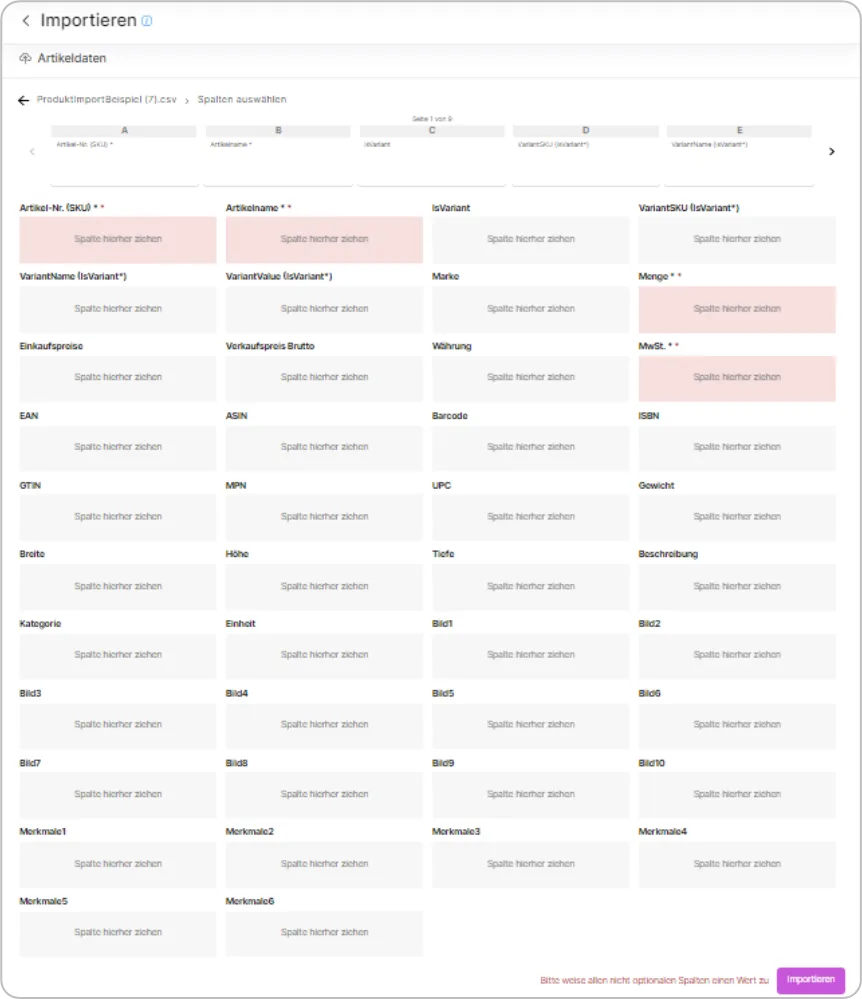
Once you have uploaded your file, you need to match and verify the information based on the column headers.
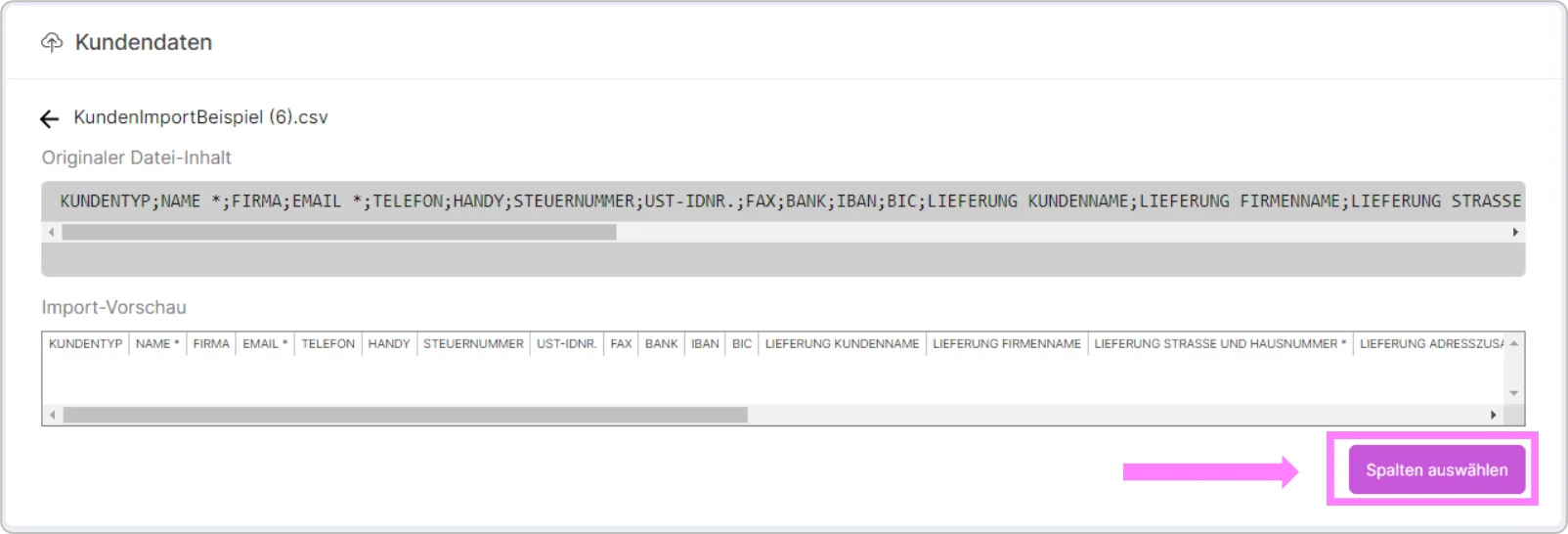
Required fields are shown in different colors, as follows. Once you have filled in this information completely, you can continue with the import process.
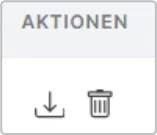
In the import list, you can see the name, date range, and export time of the data you exported.

You can also download your data by clicking the download icon in the "Actions" section, and delete your data by clicking the delete icon.
Importing Products
If you want to import your products, you need to follow the same procedures as when importing customer information.
Product Data Update
If you already have products in SaleVali and only need to refresh certain values, the "Product Data Update" import type lets you bulk-update quantity, price, tax, EAN, ASIN, GTIN, MPN, weight, and name via CSV. Instead of creating new products, each row is matched to an existing product by its SKU, or to a specific variant using a variant SKU, and only the columns you map are updated. This is the fastest way to refresh prices or stock levels for many products at once without re-importing full product data.
Categories
The "Categories" import type is available to development-license accounts only. It lets you import your category structure via CSV, using the category path to build the hierarchy automatically.
Filtering the Import List
Above the import list, an import-type filter lets you narrow the list down to a single type: Customer Data, Products, Product Data Update, or Categories. This helps you find a past import more quickly.
Video Tutorials
SaleVali Import
Was this article helpful?
Thanks for your feedback!